Smartphones contain a significant amount of personal information. From private messages and photographs to location history, banking apps, and browsing activity, your phone can reveal a great deal about your daily life. While these features make smartphones convenient, they can also create privacy risks if someone gains access to your device or tracks your activities without your permission.
Phone tracking can happen in several ways. Someone might have access to your location through a legitimate sharing feature, use a device-finding service connected to your account, install a monitoring application, or gain access to your online accounts. In some cases, tracking may involve spyware or other forms of unauthorized surveillance.
However, unusual battery drain, a warm phone, or unexpected data usage does not automatically mean someone is tracking you. These symptoms can have many ordinary explanations.
So, how can you tell whether someone might be monitoring your phone, and what should you do if you discover something suspicious?
In this guide, we will explain the common warning signs, show you how to check important privacy settings on Android and iPhone, and outline practical steps to protect your personal information without accidentally losing important data.
1. What Does Phone Tracking Mean?
Phone tracking refers to monitoring a device’s location, activity, or information. Depending on the method used, another person might be able to see where you are, access certain account information, or monitor specific activities.
There are several common forms of phone tracking.
Location Sharing
Location sharing allows people to see your location through services such as Apple Find My, Google Maps, or family-location applications.
These features can be useful when sharing your location with trusted family members or friends. However, problems can arise if sharing remains enabled with someone you no longer trust or if a person changes settings without your knowledge.
Account Access
If someone has access to your Apple Account or Google Account, they may be able to access certain information associated with that account, depending on its settings and security protections.
This might include synced photographs, device information, location-related services, or other personal data.
Spyware or Monitoring Applications
Some applications are designed to monitor a device’s activity. Certain tools are marketed for legitimate parental supervision or device management, but monitoring someone without their informed permission can create serious privacy and legal concerns.
Malicious spyware may attempt to access messages, location information, microphone activity, or other sensitive data, depending on the permissions and technical access available.
Physical Tracking Devices
A person may also use a physical Bluetooth tracking device, such as an AirTag or another compatible tracker, to follow the movement of a person or their belongings.
This type of tracking does not necessarily mean your phone itself has been compromised. The tracker may simply be traveling with you in a bag, vehicle, or personal item.
Understanding the different possibilities helps you investigate the right settings instead of assuming every unusual phone behavior is caused by spyware.
2. Warning Signs That Someone Might Be Tracking Your Phone
There is no single symptom that proves your phone is being monitored. However, several unexpected changes may justify checking your device’s privacy and security settings.
Unusual Battery Drain
If your phone suddenly loses battery much faster than usual, an application running in the background could be responsible.
Some monitoring applications may perform background tasks that consume battery power. However, battery drain is much more commonly associated with ordinary causes such as software updates, weak cellular signals, aging batteries, video streaming, and demanding applications.
What to check: Open your phone’s battery settings and review which applications have consumed the most power. Look for unfamiliar apps or activity that does not match your usage.
Unexpected Data Usage
Certain monitoring tools may transmit collected information over the internet. If an application is sending data in the background, it could contribute to increased mobile data usage.
However, automatic photo backups, video streaming, app updates, and cloud synchronization can produce similar patterns.
What to check: Review mobile data usage by application and compare it with your usual activity. Investigate unfamiliar apps that consume unusually large amounts of data.
Your Phone Gets Warm When You Are Not Using It
A phone that remains unusually warm while idle may be running background processes.
Possible causes include app synchronization, software updates, poor cellular reception, a faulty battery, or a demanding application. Unauthorized monitoring is another possibility, but warmth alone is not reliable evidence.
What to check: Review battery activity and recently installed applications. If the phone repeatedly becomes excessively hot without an obvious explanation, investigate further.
Unfamiliar Applications Appear on Your Phone
An application you do not recognize deserves attention, particularly if it has extensive permissions or device-management access.
However, some unfamiliar entries may be legitimate system components, manufacturer utilities, or applications installed as part of an update.
What to check: Open your application list and review unfamiliar apps, their developers, permissions, and installation details. Do not immediately remove system components simply because their names are unfamiliar.
Unexpected Location or Privacy Indicators
Modern smartphones may display indicators when certain features are being used. For example, an iPhone displays an indicator when the microphone or camera is active, while Android devices also provide privacy indicators for sensitive permissions.
An unexpected microphone, camera, or location indicator may be worth investigating.
What to check: Open your privacy dashboard or permission settings to identify which application recently accessed the relevant feature.
Keep in mind that normal applications can use these permissions for legitimate reasons. The important question is whether the access makes sense for the application and your activity.
Someone Knows Details You Have Not Shared
If another person repeatedly knows your precise location, private conversations, travel plans, or other information you have not shared with them, it may be worth reviewing your digital security.
Possible explanations include shared accounts, location-sharing settings, access to your unlocked phone, visible notifications, shared calendars, or information disclosed through other channels.
Do not assume spyware is necessarily responsible. Instead, examine how the person might be obtaining the information and review the relevant accounts and settings.
Unexpected Security Notifications
Alerts about new sign-ins, password changes, verification requests, or unfamiliar devices connected to your account can indicate that someone else is attempting to access your information.
These notifications deserve particular attention because they may reveal account access rather than simple location sharing.
What to check: Review your Apple Account or Google Account security activity and investigate unfamiliar devices or sessions.
Never share verification codes with another person, even if they claim to be helping you secure your account.
3. How to Check If Someone Is Tracking Your iPhone
Apple provides several built-in privacy and security features that can help you review location sharing, application permissions, account access, and unwanted tracking alerts.
Menu names may vary slightly depending on your iOS version.
Step 1: Review Location Sharing in Find My
Open the Find My app and select the People section.
Review the people who can see your location. If you find someone you no longer want to share your location with, you can review the available controls to stop sharing.
Also check Settings → Your name → Find My to review the relevant location-sharing and device-finding settings.
Be careful when changing these options. Turning off a service can affect legitimate safety features or your ability to locate your own device.
If you suspect that someone close to you is monitoring your phone and might react negatively to losing access, consider your safety before changing settings.
Step 2: Use Apple’s Safety Check
On supported iPhones running iOS 16 or later, Apple’s Safety Check feature helps users review and manage sharing relationships and account access.
To access it, open:
Settings → Privacy & Security → Safety Check
Depending on your needs, you can review the information and people with whom you share access or use the available emergency reset options.
Safety Check can help you review sharing involving certain Apple apps and features, but it does not identify every possible form of spyware or every third-party monitoring service.
If you are concerned about an abusive partner, stalker, or another person who might retaliate, read Apple’s safety guidance and consider using a safer device before making changes.
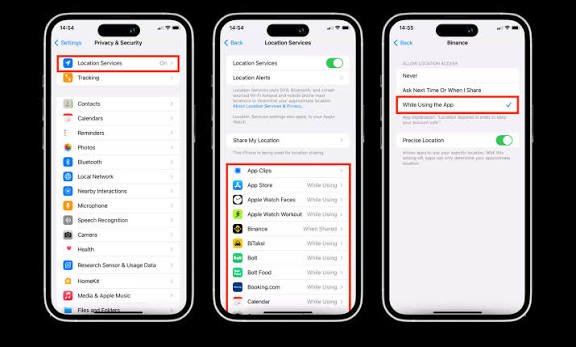
Step 3: Check Which Apps Can Access Your Location
Open:
Settings → Privacy & Security → Location Services
Review the applications listed and check which ones have permission to access your location.
Pay attention to apps set to access your location at all times, especially if you do not recognize them or their purpose does not justify that access.
You can change permissions to options such as Never, Ask Next Time, or While Using the App, depending on what iOS offers for that application.
Disabling location access for an app may affect features such as navigation, weather updates, or location-based reminders.
Step 4: Review Camera and Microphone Permissions
Go to Settings → Privacy & Security and review the relevant permission categories.
Check which applications can access your camera and microphone. Revoke permissions that are unnecessary or inconsistent with how you use an app.
You can also review the App Privacy Report, if enabled and available, for information about certain application data access and network activity.
These tools can help identify unexpected access, although they cannot guarantee that every form of monitoring will be detected.
Step 5: Review Devices Connected to Your Apple Account
Open Settings → Your name and review the devices associated with your Apple Account.
If you find a device you do not recognize, investigate it before removing it. Some devices may belong to family members or represent equipment you previously used.
If you confirm that an unfamiliar device is unauthorized, follow Apple’s account-security guidance to remove access and secure your account.
Consider changing your password from a trusted device and reviewing your trusted phone numbers and other account-recovery settings.
Step 6: Check for Unknown Configuration Profiles
Some organizations use configuration profiles or mobile-device management systems to manage company-owned or school-issued phones.
However, an unfamiliar management profile on a personal device may warrant investigation.
On an iPhone, open:
Settings → General → VPN & Device Management
Review any profiles or management entries you do not recognize.
Do not remove a legitimate work or school profile without understanding the consequences. If you find an unexpected profile on your personal phone, investigate its origin and consult Apple Support if necessary.
4. How to Check If Someone Is Tracking Your Android Phone
Android provides several tools for reviewing app permissions, location sharing, account activity, and device administration.
Exact menus vary among manufacturers, including Samsung, Google Pixel, and other Android phone brands.
Step 1: Review Location Permissions
Open:
Settings → Location → App location permissions
On some devices, the option may appear under Privacy → Permission manager → Location.
Review the applications that have location access. Pay particular attention to apps permitted to access your location all the time.
If an app does not need continuous location access, consider changing its permission to allow access only while the app is in use or denying access entirely.
Be aware that some legitimate applications need background location access for features such as navigation, safety alerts, or fitness tracking.
Step 2: Check the Privacy Dashboard
Many recent Android devices provide a Privacy Dashboard or a similar permission-usage screen.
Depending on the phone, you can usually find it under:
Settings → Security & privacy → Privacy dashboard
Review recent access to location, camera, and microphone permissions.
If an unfamiliar app has accessed a sensitive feature, examine the app’s identity and purpose before taking action.
Android also provides camera and microphone privacy indicators on supported versions. These can help you notice when an app is using those features.
Step 3: Run Google Play Protect
Google Play Protect checks applications for potentially harmful behavior and can warn you about certain security threats.
Open the Google Play Store, tap your profile icon, and select Play Protect. Then run a scan if one is available.
Keep Play Protect enabled unless you have a specific, well-understood reason to change it.
A clean scan does not guarantee that your phone is free from every form of spyware or sophisticated monitoring software. It is one useful security measure rather than a complete investigation.
Step 4: Review Device Admin Apps
Some Android applications can receive elevated device-management privileges. These privileges may be legitimate, but they deserve careful review if an unfamiliar app has them.
Look in your phone’s settings for Device admin apps or a similarly named option, often within the security settings.
Review applications with administrative privileges. If an unfamiliar application has access you did not authorize, investigate it before disabling or removing it.
Some legitimate services, including work-management tools and security applications, may require these permissions.
Step 5: Check Accessibility Permissions
Android’s Accessibility services can help people with disabilities use their devices, and many legitimate applications use these services for supported functions.
However, powerful accessibility permissions can also be abused by malicious applications.
Look under Settings → Accessibility for installed services and applications that can use accessibility features.
If you find an unfamiliar service that you did not enable, investigate its source and purpose. Disable access when you are confident it is unnecessary or unauthorized.
Do not turn off accessibility features you rely on without considering their impact on your ability to use the phone.
Step 6: Review Your Google Account
Visit your Google Account settings and open the Security section.
Review recent security activity and the devices associated with your account. Look for unfamiliar devices, suspicious sign-ins, or unexpected changes to your account settings.
You can also review Google Maps location sharing if you use it.
If someone has unauthorized access to your Google Account, secure the account from a trusted device, change your password, and review recovery options and active sessions.
Remember that access to a Google Account does not automatically mean someone can see every detail on your phone. The information available depends on the services, permissions, and settings involved.
5. How to Check for Hidden Spyware or Monitoring Apps
Spyware is software designed to collect information or monitor activity without appropriate knowledge or consent. Some malicious apps attempt to conceal themselves, while others may appear as ordinary applications.
There is no universal test that detects every type of spyware, but several steps can help you investigate.
Review All Installed Applications
Open your phone’s application settings and review the complete list of installed apps.
Look for applications you do not recognize, particularly those with broad access to location, messages, accessibility services, notifications, or device administration.
Search for the app’s name using a trusted source or consult your phone manufacturer if you are unsure whether it is legitimate.
Do not assume that an application is malicious solely because it has an unfamiliar name.
Review App Permissions
An application that needs access to your contacts, location, microphone, camera, or messages should have a reasonable explanation for requiring those permissions.
Review whether the permissions match the app’s purpose.
For example, a navigation application may reasonably need location access, while an unrelated utility may not need continuous access to your microphone.
Permission reviews are useful for identifying unnecessary access, but sophisticated monitoring may use other methods or operate through a compromised account.
Check Accessibility and Device Management
On Android, pay particular attention to Accessibility services, device administrator privileges, and other special app access.
On iPhone, review configuration profiles and device-management settings.
These areas are especially important because they can grant capabilities beyond ordinary application permissions.
Only change settings after understanding what they control and whether they belong to a legitimate service.
Use Trusted Security Tools
Keep your phone’s operating system updated and use built-in security features.
On Android, Google Play Protect and reputable mobile-security applications may help identify certain threats. On iPhone, keeping iOS updated and reviewing account access and device-management settings are important defensive steps.
Avoid downloading random spyware-removal tools from unfamiliar websites. Some fake security applications may create additional privacy risks.
Understand the Limits of Detection
A phone that passes a security scan is not guaranteed to be free of every monitoring tool. Similarly, finding no unfamiliar apps does not rule out unauthorized access through location sharing or an online account.
If you have strong reasons to suspect sophisticated surveillance, consider getting help from a qualified digital-security professional or a trusted support organization.
6. Could Someone Be Tracking You Through Your Apple or Google Account?
Yes. In some cases, a person does not need to install spyware directly on your phone to gain access to certain information.
If they can sign in to an account connected to your device, they may be able to access data that is synchronized or shared through that account.
Signs of Possible Account Compromise
Watch for:
- Unfamiliar devices listed in your account.
- Security alerts for sign-ins you do not recognize.
- Unexpected password or recovery-information changes.
- Location sharing enabled with someone without your permission.
- Messages or account settings that appear to have been accessed by someone else.
These signs do not all prove tracking, but they justify reviewing account security.
How to Secure Your Account
If you believe an account has been compromised:
- Use a trusted device to review account activity.
- Change the password to a strong, unique one.
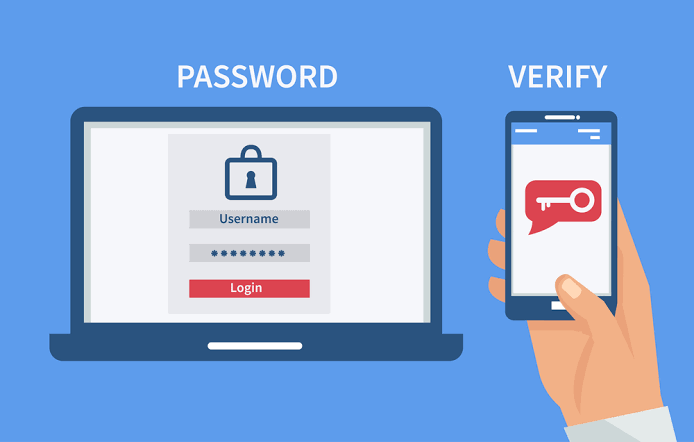
- Enable two-factor authentication or the account’s strongest available sign-in protection.
- Review recovery email addresses and trusted phone numbers.
- Sign out unfamiliar sessions or remove unauthorized devices.
- Check sharing settings and connected third-party applications.
If the person you suspect has access to your email account, consider securing that account as well. Email can be used to reset passwords for other services.
If you share an account with another person, understand that changing credentials or removing access may alert them or disrupt legitimate shared services.
7. How to Detect an Unknown Bluetooth Tracking Device
Sometimes the issue is not phone spyware but a physical tracking device moving with you.
Bluetooth trackers can be attached to belongings such as bags, keys, or vehicles. If someone places one among your possessions without permission, it may be used to follow your movements.
Apple and Google support unwanted-tracker alerts on compatible devices for certain supported Bluetooth trackers.
On an iPhone
Depending on your iOS version and the tracker’s compatibility, your iPhone may display an alert if a supported tracker appears to be moving with you.
Follow the alert’s instructions to review information about the tracker and available safety options.
On Android
Compatible Android devices can provide unknown-tracker alerts. You may also be able to initiate a manual scan through the relevant safety settings.
On supported versions, look for an option such as Settings → Safety & emergency → Unknown tracker alerts. The exact path varies by device.
What to Do if You Find a Tracker
- Move to a safe, public place if you are concerned about your personal safety.
- Follow the phone’s instructions to identify the tracker, when possible.
- Document relevant details if you may need evidence.
- Consider contacting local law enforcement or a trusted support organization if you believe someone is stalking or threatening you.
Disabling a tracker may prevent further tracking through that device, but it may not prevent someone from using other methods to monitor you.
If you suspect a partner or another person may become aggressive when tracking is interrupted, consider seeking safety advice before acting.
8. What to Do If You Discover Unauthorized Tracking
Finding suspicious activity can be stressful, particularly if it involves someone you know. Your response should depend on the seriousness of the situation and whether changing settings could put you at risk.
Step 1: Prioritize Your Safety
If you suspect stalking, harassment, or abuse, use a device that the other person cannot access to research support options or contact someone you trust.
Changing passwords, disabling location sharing, or removing monitoring software may alert the person who is tracking you.
If you believe you may be in immediate danger, contact local emergency services.
Step 2: Preserve Evidence When Appropriate
If you suspect unauthorized monitoring, consider documenting unfamiliar apps, account alerts, device sessions, or location-sharing settings.
Save screenshots or relevant notifications when it is safe to do so.
Do not put yourself at risk to collect evidence. If the situation may involve criminal conduct, a qualified professional can advise you on safe documentation.
Step 3: Secure Your Accounts
Use a trusted device to update passwords, review account sessions, enable stronger authentication, and remove unauthorized access.
Secure your primary email account as well as your Apple or Google Account.
If the other person has access to your phone number or recovery methods, review those settings too.
Step 4: Remove Suspicious Apps Carefully
If you identify a clearly unauthorized application, removal may be appropriate.
However, some monitoring applications are connected to an abusive relationship or a broader safety concern. Removing them immediately could alert the person responsible.
If personal safety is a concern, consider consulting a specialist before removing software or changing settings.
Step 5: Update Your Phone
Install operating-system and security updates from the official settings menu.
Updates can address known vulnerabilities and improve security protections.
Updates are an important preventive measure, but they do not guarantee that an already compromised account or device will be secure.
Step 6: Consider a Factory Reset Only When Necessary
A factory reset can remove many ordinary applications and local files, but it is not a guaranteed solution for every form of compromise.
Before resetting your phone, consider whether you need to preserve evidence, back up important information, or get professional advice.
If you do reset the device, update it before restoring your data and reinstall applications only from trusted sources. Avoid automatically restoring unfamiliar applications or settings that might reintroduce the problem.
A reset also does not necessarily secure a compromised online account. Account security must be addressed separately.
9. How to Prevent Someone From Tracking Your Phone in the Future
Good security habits can reduce the risk of unauthorized tracking.
Use a Strong Screen Lock
Set a strong passcode that other people cannot easily guess. Avoid sharing it unnecessarily, and use a secure biometric unlock method if appropriate.
Be aware that someone who knows your passcode may be able to change important settings or access personal information, depending on your device and its protections.
Enable Two-Factor Authentication
Use two-factor authentication or passkeys where supported. These protections can make it harder for someone to access your accounts with a password alone.
Keep your recovery methods secure, and never share verification codes with someone who contacts you unexpectedly.
Review Location Sharing Regularly
Periodically check Apple Find My, Google Maps, family-location applications, and other services that share your location.
Remove access you no longer want to grant.
Limit App Permissions
Give applications access only to the information and features they need. Review location, camera, microphone, contacts, and other sensitive permissions from time to time.
Avoid Installing Untrusted Applications
Download apps from official stores whenever possible, check developer information, and be cautious about installing applications from links sent by strangers.
Do not grant accessibility or device-management privileges to unfamiliar apps without a clear reason.
Keep Your Software Updated
Install security updates promptly and use supported versions of your phone’s operating system.
Older devices that no longer receive security updates may be more vulnerable to known threats.
Protect Physical Access to Your Phone
Do not leave your unlocked phone unattended around people you do not trust. Be cautious when lending your device, even briefly.
If someone has physical access to your phone, they may be able to change settings, install software, or access accounts depending on the device’s security protections.
10. Common Myths About Phone Tracking
Several misconceptions can make it harder to identify real security concerns.
Myth 1: A Hot Phone Means Someone Is Spying on You
Not necessarily. Background updates, games, poor reception, and battery problems can all cause heat.
Look for additional evidence before concluding that tracking is occurring.
Myth 2: Fast Battery Drain Proves Spyware Is Installed
Battery drain has many possible causes. Review battery usage, installed apps, and recent software changes before drawing conclusions.
Myth 3: Every Unknown App Is Malicious
Some system components have unfamiliar names. Research an app and its permissions before removing it.
Myth 4: Turning Off GPS Stops All Tracking
Disabling location services may restrict some forms of location access, but it does not prevent every possible way of inferring a device’s location.
For example, mobile networks, connected accounts, other location-sharing services, and physical trackers may create separate privacy concerns.
Myth 5: Antivirus Software Detects Every Threat
Security tools can identify certain threats, but no single scan guarantees that a device is completely free from spyware or unauthorized access.
A broader review of account security, app permissions, device management, and location sharing is often necessary.
Frequently Asked Questions
Can someone track my phone without me knowing?
Yes, it is possible through unauthorized location sharing, compromised accounts, certain monitoring applications, or physical tracking devices. However, many signs commonly associated with tracking also have ordinary explanations. Review your privacy and security settings before drawing conclusions.
How can I tell if someone is tracking my phone location?
Review location permissions, Apple Find My, Google Maps location sharing, account access, and any family-location applications you use. Also check for unknown-tracker alerts if you suspect a physical Bluetooth tracker.
Can someone track my phone using just my phone number?
A phone number alone does not normally give an ordinary person unrestricted access to your real-time location. However, phone numbers can be involved in account recovery, social engineering, or other methods of unauthorized access. Mobile carriers and authorized services may have location-related capabilities subject to applicable laws and circumstances.
Can someone track my phone through WhatsApp?
WhatsApp has a live-location feature that allows users to share their location in supported conversations for a chosen period. Review active location-sharing sessions and stop any you do not want to continue.
Access to a WhatsApp account can also expose certain information, depending on the circumstances. Protect your account and enable available additional security features.
Can someone track my iPhone without Apple ID access?
Some forms of monitoring, including location sharing through other applications or physical tracking devices, may not require access to your Apple Account. The available methods depend on the situation and the permissions involved.
Does turning off location services stop phone tracking?
It can limit access to location information for applications that rely on the phone’s location services. However, it does not stop every form of tracking, account access, or location inference.
Can a factory reset remove spyware?
A factory reset removes much locally stored data and many installed applications, so it may resolve certain forms of compromise. However, it does not necessarily fix a compromised online account or every advanced threat. Secure your accounts separately and seek professional assistance if you have strong reasons to suspect sophisticated surveillance.
Should I confront the person I suspect is tracking me?
Not necessarily. If you believe the person may be abusive, threatening, or unpredictable, confronting them could increase the risk to your safety. Consider speaking with a trusted person or a specialist support organization before taking action.
Can someone track my phone when it is turned off?
A fully powered-off phone generally cannot perform ordinary real-time location reporting in the same way as a powered-on device. However, some newer devices support limited finding features under specific conditions, and the details vary by model and service. Previously shared location information may also remain visible to someone who already has access to it.
Final Thoughts
Finding out whether someone is tracking your phone without permission requires more than looking for a single warning sign. Unusual battery drain, unexpected data usage, and a warm phone can be reasons to investigate, but none of them proves that surveillance is occurring.
The most useful approach is to review your location-sharing settings, check application permissions, inspect account security activity, and look for unfamiliar device-management access. On compatible phones, unwanted-tracker alerts can also help identify certain physical tracking devices.
If you discover unauthorized access, secure your accounts, update your device, and remove suspicious software when it is safe to do so. If you suspect stalking or abuse, prioritize your personal safety before changing settings that could alert the other person.
The bottom line: You do not need to panic over every unusual phone behavior. A careful review of your device, accounts, and sharing settings can help you identify genuine privacy risks and take practical steps to protect your information. Regular security checks, strong passwords, limited app permissions, and awareness of location sharing are among the best ways to keep your smartphone and personal data more secure.